Jira Comment
Jira is a software development tool used for issue tracking, project management, and agile software development. It allows users to plan, track, and release software projects. Jira's core functionality includes the ability to create and assign tasks, track progress and status, and collaborate with team members.
By adding Appcircle's Jira Comment component to your workflow, you can add comments or change their status according to your workflow.
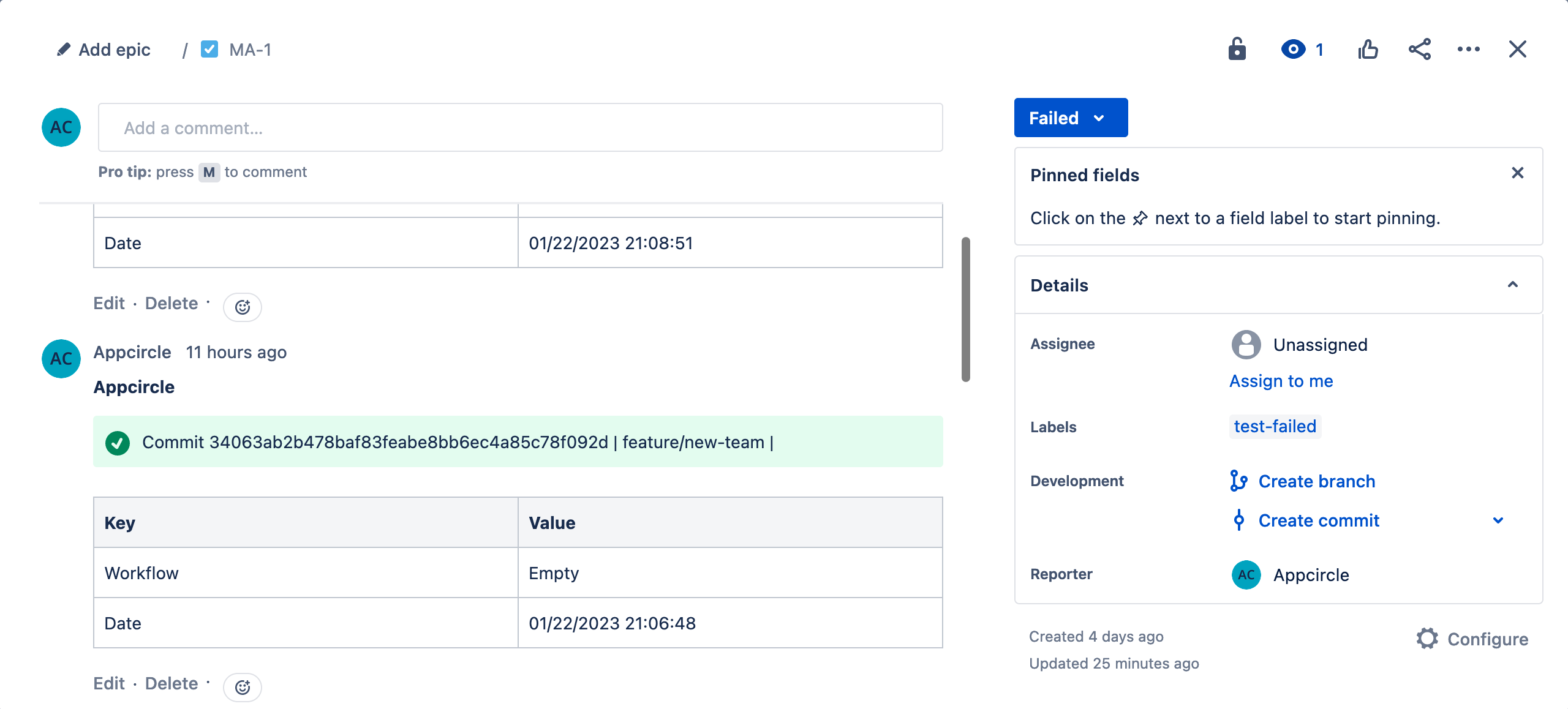
Prerequisites
Before using the Jira Comment step, make sure you have the following:
- Credentials for your Jira instance: an API token and the associated account email for Jira Cloud, or a Personal Access Token (PAT) for Jira On-Prem.
- An Environment Variables group that holds those credentials, connected to your build profile. For security reasons, we recommend adding the token and the PAT as secret variables using the lock icon rather than entering them into the step inputs directly.
- The key of the Jira issue to comment on, available to the step as an environment variable. See Getting the Issue Key Dynamically to extract it from the branch name.
The Jira Comment step changes the status of the relevant issue only when you fill in $AC_JIRA_SUCCESS_TRANSITION or $AC_JIRA_FAIL_TRANSITION. If you leave both empty, the step only posts a comment and never touches the issue status.
If you do use transitions, make sure the step is placed in the correct order in your workflow. Otherwise an incorrect status may appear in your Jira account when the build fails in Appcircle.
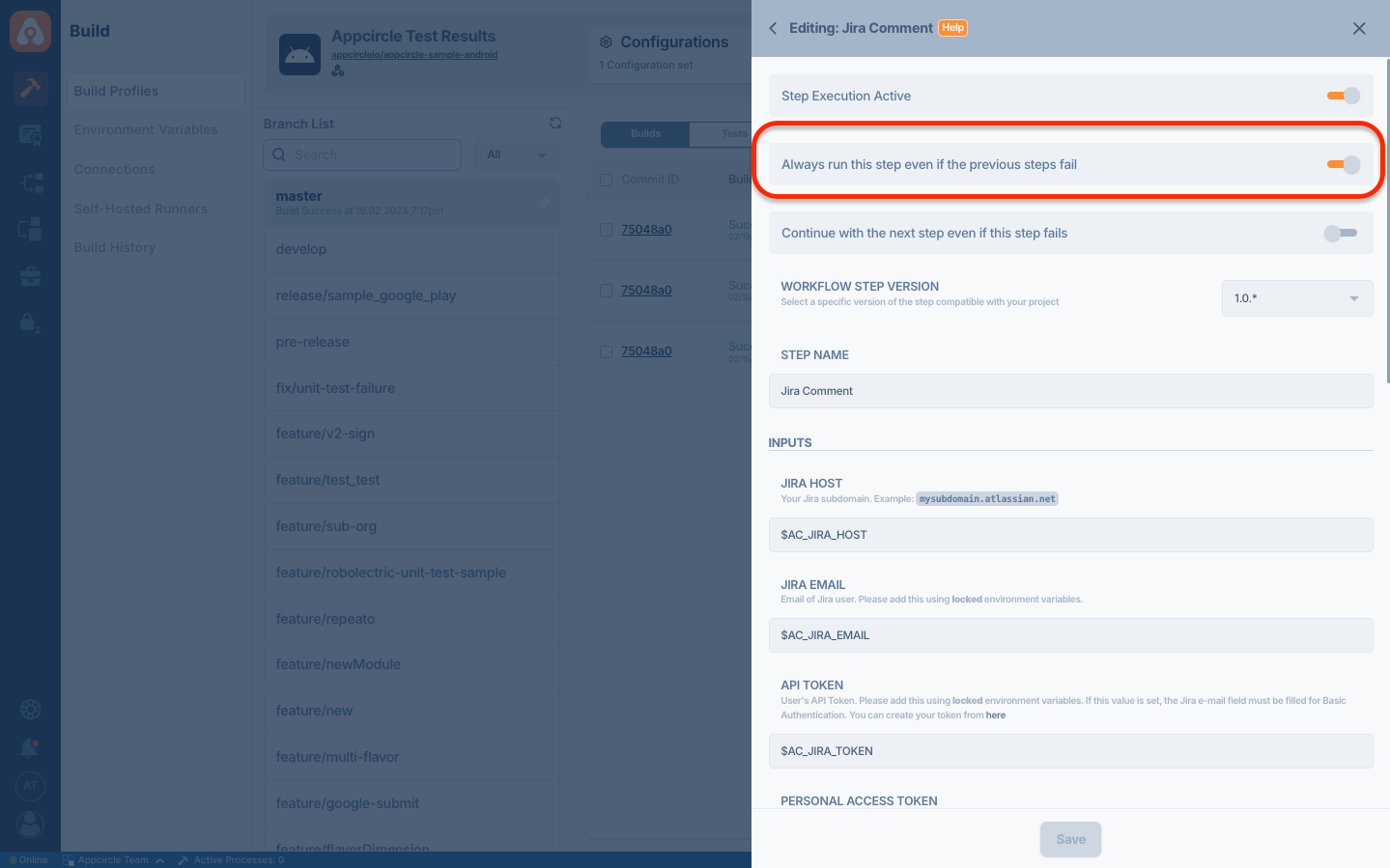
To ensure that the Jira Comment step runs even if your workflow fails, enable the Always run this step even if the previous steps fail switch. This switch is required for $AC_JIRA_FAIL_TRANSITION to take effect.
Getting the Issue Key Dynamically
To add a comment, the issue ID must be supplied to the component. We need to get this issue ID dynamically so that our workflow can work for multiple branches. Appcircle components use environment variables to pass the state. We can add a step just before the Jira Comment to prepare the necessary environment variables.
For example, you're working on a feature branch called feature/jiraissue-1. You may use the below Ruby script to get the issue key JIRAISSUE-1 from the branch name and use this information with the Jira Comment. The key is uppercased because Jira issue keys are always uppercase. Please see the Custom Script documentation for this implementation.
branch = ENV['AC_GIT_BRANCH']
issue_key = branch.split('/').last.upcase
puts issue_key

# Write Environment Variable
open(ENV['AC_ENV_FILE_PATH'], 'a') { |f|
    f.puts "AC_JIRA_ISSUE=#{issue_key}"
}
The script writes an environment variable named AC_JIRA_ISSUE, and that is exactly the variable the Jira Comment step reads through its $AC_JIRA_ISSUE input. Since the input already defaults to $AC_JIRA_ISSUE, you can leave it untouched and the value produced by the script is picked up automatically.
Adjust the parsing logic to match your own branch naming convention. The example above takes the last segment of the branch name, so it also works for a nested branch such as feature/ios/JIRAISSUE-1 and for a branch name that contains no / at all.
Finding the Transition Name
$AC_JIRA_SUCCESS_TRANSITION and $AC_JIRA_FAIL_TRANSITION are optional. If you leave both empty, the step only posts a comment and the issue status is never touched.
You do not need to look up a numeric ID. The step accepts the transition name as it is and resolves the matching ID itself, ignoring letter case.
A transition is the move between two statuses, not the status itself. In most projects the transition carries the same name as the status it leads to, so the quickest way to find the value is the Jira UI:
- Open the issue in Jira.
- Click the status button on the issue.
- The entries in the dropdown are the transitions available from the current status.
- Type one of those entries into the step input exactly as it is written, for example
In ProgressorDone.
If the name does not match
Some workflows name a transition differently from the status it leads to, for example Start Progress for the In Progress status. In that case the dropdown label is not the value the step needs, and you can read the real names straight from the Jira REST API. Since you are already signed in to Jira in your browser, open this address in a new tab and replace the site and the issue key with your own:
https://mysubdomain.atlassian.net/rest/api/3/issue/JIRAISSUE-1/transitions
The response lists every transition available for that issue. The name value is what you enter in the step input:
{
  "transitions": [
    { "id": "21", "name": "In Progress", "to": { "name": "In Progress" } },
    { "id": "31", "name": "Done", "to": { "name": "Done" } }
  ]
}
For Jira On-Prem, use /rest/api/2/ in place of /rest/api/3/. A project administrator can also see the same names under Project settings > Workflows.
The step fails if the value you enter does not match any available transition, so check the following when a transition does not work:
- Transitions are specific to a project's workflow. A name that works in one project may not exist in another.
- Only the transitions valid for the issue's current status are available. If an issue is already in the
Donestatus, aDonetransition may not be offered. - Make sure no trailing space is left in the input. Letter case is ignored, but a stray space is not.
Jira REST API Version Reference
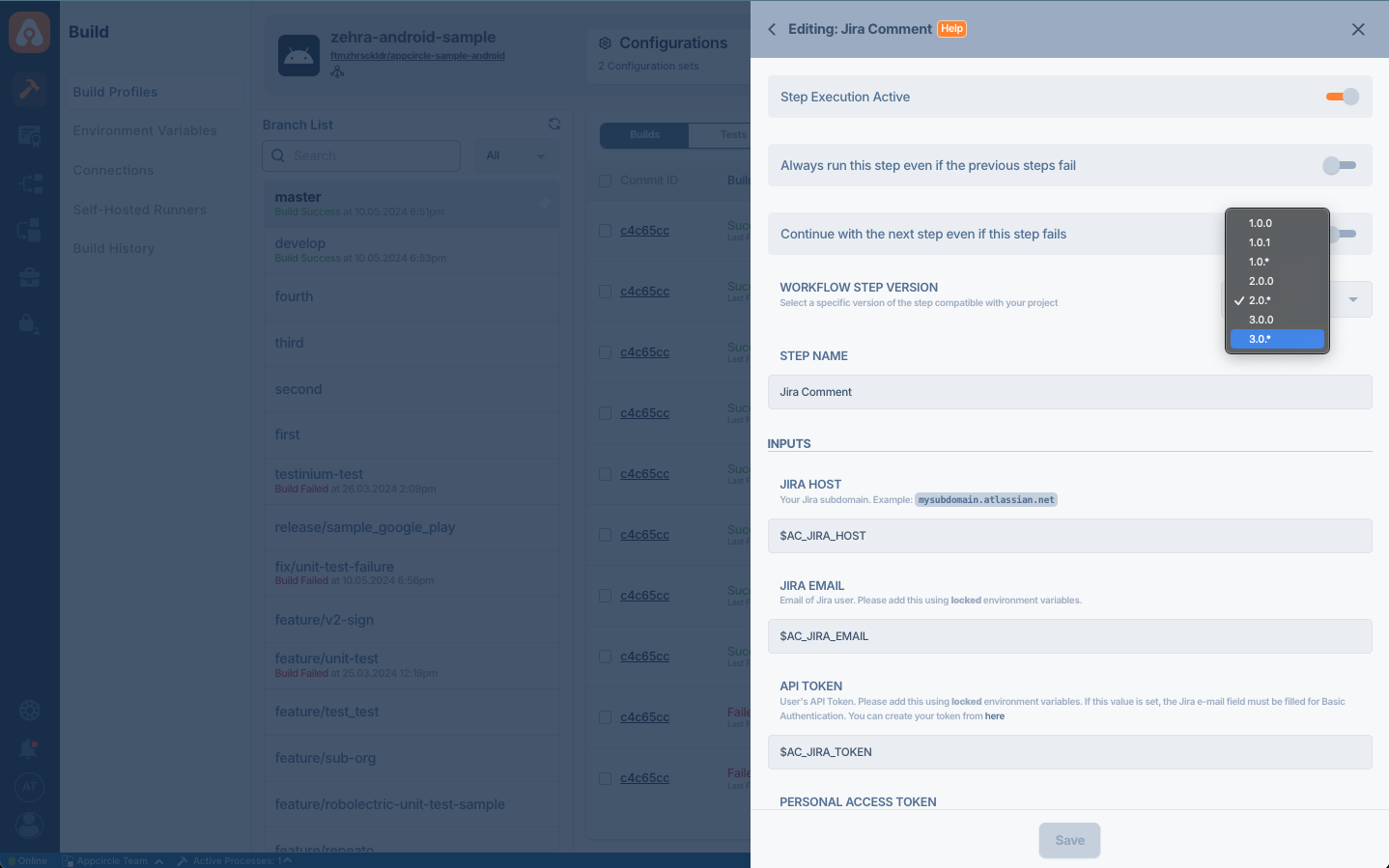
Jira Comment input types depend on the Jira REST API version. Therefore, you can select the appropriate Jira REST API version from the component version selection list. Here's how:
- For Jira REST API version 2: This version can be used by both Jira On-Prem and Jira Cloud users. Choose
2.*.*from the selection list. - For Jira REST API version 3: This version can only be used by Jira Cloud users. Choose
3.*.*from the selection list.
Changing Template
Appcircle provides a default template that adds commit id, branch name, time in UTC, and a couple of environment variables. The structure of the Jira comment template depends on the version of the Jira REST API you're utilizing.
If you're utilizing API version 2, commenting is limited to string type only. On the other hand, for Jira API version 3, you have the flexibility to send comments in any format using the Atlassian Document Format (ADF). To create custom comments for version 3, you can leverage tools like the ADF Builder.
Variables prefixed with $ are replaced with their values during the build. AC_JIRA_DATE is the one exception: the component replaces it with the build time in UTC even though it carries no $ prefix.
Both the $AC_JIRA_TEMPLATE_V2 and $AC_JIRA_TEMPLATE_V3 inputs come prefilled with the default template, so you can see the current template and edit it directly in the step inputs. For the syntax rules of each format, refer to Atlassian's own documentation: the V2 template uses Jira's wiki markup, and the V3 template uses the Atlassian Document Format.
Input Variables
This step needs the input variables below in order to work. The table below explains these variables.
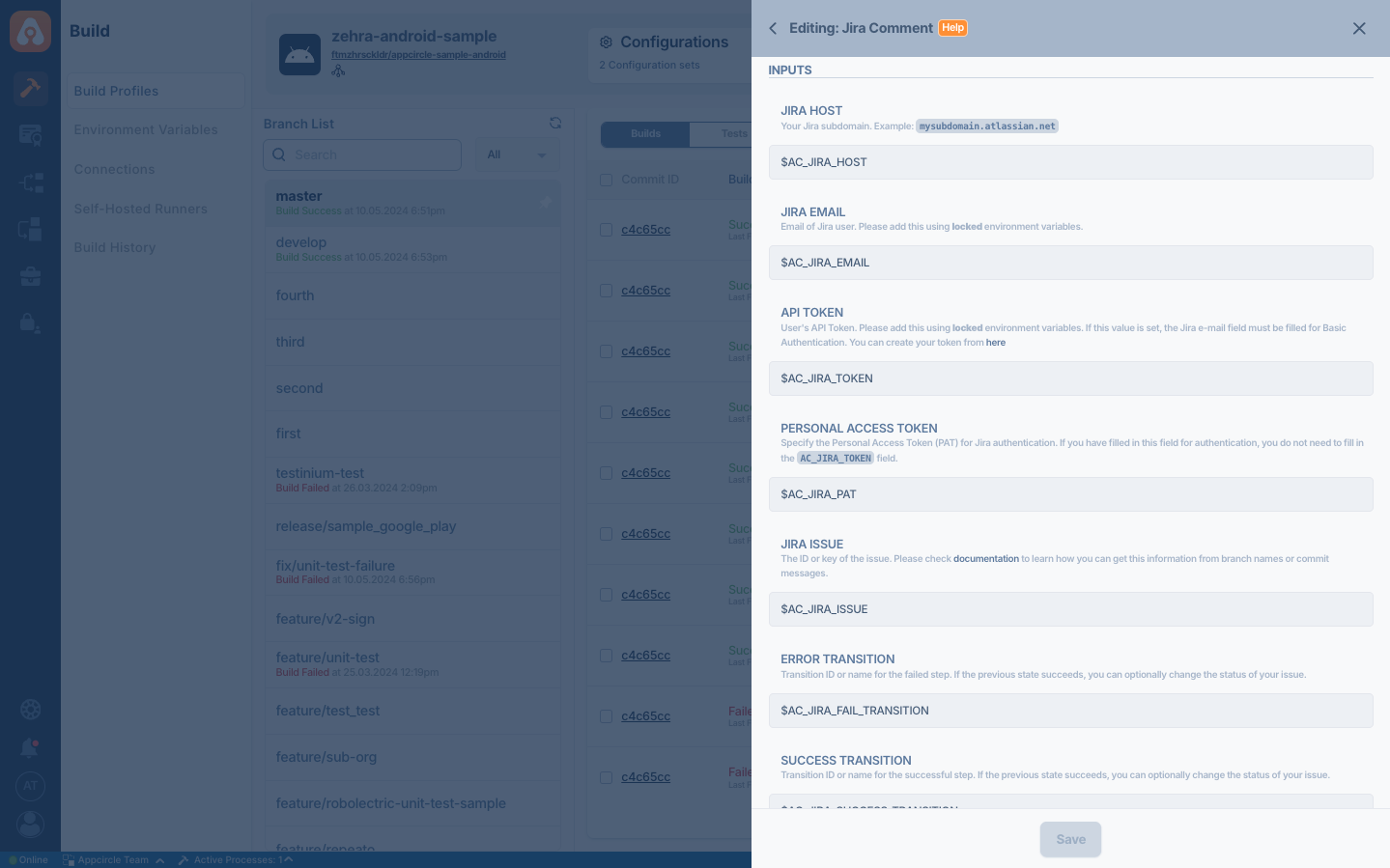
Please do not use sensitive variables such as Username, Password, API Token, or Personal Access Token directly within the step.
We recommend using Environment Variables groups for such sensitive variables.
The required inputs for authorization vary based on the type of Jira instance (On-Prem or Cloud). Below is a summary of the required inputs:
For Jira On-Prem Users:
AC_JIRA_EMAIL: Not requiredAC_JIRA_TOKEN: Not requiredAC_JIRA_PAT: Required
For Jira Cloud Users:
AC_JIRA_EMAIL: RequiredAC_JIRA_TOKEN: RequiredAC_JIRA_PAT: Not required
| Variable Name | Description | Status |
|---|---|---|
$AC_JIRA_HOST | The host of your Jira instance, including the scheme. For Jira Cloud this is your Atlassian site, for example: https://mysubdomain.atlassian.net. For Jira On-Prem, enter your own Jira URL, for example: https://jira.mycompany.com | Required |
$AC_JIRA_EMAIL | The email associated with your Jira account. This field is required for using API tokens instead of PAT. | Conditional - required for Jira Cloud |
$AC_JIRA_TOKEN | User's API Token. If this value is filled, the Jira e-mail field must be filled as well. Only Jira Cloud users can use API Token. You can create a token here | Conditional - required for Jira Cloud |
$AC_JIRA_PAT | Specify the Personal Access Token for Jira authentication. Only Jira On-Prem users can use PAT. | Conditional - required for Jira On-Prem |
$AC_JIRA_ISSUE | The ID or key of the issue. Refer to the Getting the Issue Key Dynamically section for instructions on extracting this information from branch names or commit messages. | Required |
$AC_JIRA_FAIL_TRANSITION | Transition ID or name for the failed step. Optionally change the status of your issue if the previous step fails. Ensure that the Always run this step even if the previous steps fail switch is enabled for this feature to work. Refer to the Finding the Transition Name section to look up this value. | Optional |
$AC_JIRA_SUCCESS_TRANSITION | Transition ID or name for the successful step. Optionally change the status of your issue if the previous step succeeds. Refer to the Finding the Transition Name section to look up this value. | Optional |
$AC_JIRA_TEMPLATE_V2 | The comment template used to post a comment if Jira REST API Version 2 is selected. Variables prefixed with $ will be replaced during the build process. A default template is provided. Refer to the Changing Template section to modify it. | Optional |
$AC_JIRA_TEMPLATE_V3 | The comment template used to post a comment if Jira REST API Version 3 is selected. Variables prefixed with $ will be replaced during the build process. A default template is provided. Refer to the Changing Template section to modify it. | Optional |
To access the source code of this component, please use the following link: